Facebook Post Preview Generator
See exactly how your Facebook post looks in the news feed before you hit publish. Preview text truncation, image cropping, link cards, and reactions on both desktop and mobile. Free — no signup required.
Excited to announce something big is coming next week! We have been working hard behind the scenes on a project that will change how you create social content... See more
Post Image Preview
1200 x 630px recommended
Preview — your post will render just like this in the Facebook feed
Preview Your Facebook Post
Enter your text and optional image below to see exactly how your post will appear before publishing. Free — no signup required.
Live Preview
Your Name
Just now ·
Your post will appear here...
Type something to see the preview
Why You Should Always Preview Facebook Posts Before Publishing
Facebook's news feed is one of the most valuable pieces of digital real estate for any brand, creator, or individual. Yet the majority of people publish posts without ever checking how they actually look to their audience. A misaligned image, a truncated headline, or a broken link preview card can mean the difference between a post that gets shared hundreds of times and one that is scrolled past in seconds.
Facebook's Algorithm Rewards First Impressions
Facebook's ranking algorithm evaluates early engagement signals — specifically the reactions, comments, and shares your post receives in the first hour after publishing — to determine how widely it should be distributed. A post with unclear visuals or awkward text truncation generates weaker early signals, which suppresses reach. Previewing before publishing lets you optimize that critical first impression so your content performs at its best from the moment it goes live.
Image Aspect Ratios Matter More Than You Think
Facebook renders images differently depending on their aspect ratio and the device your audience is using. The ideal image size for a Facebook feed post is 1200 x 630 pixels (a 1.91:1 ratio) for horizontal images, or 1080 x 1080 pixels (1:1) for square images. On mobile devices, where more than 80% of Facebook users browse, portrait-oriented images (4:5 ratio, 1080 x 1350px) take up significantly more vertical screen space, which increases visibility as users scroll. If you post an image that doesn't match these dimensions, Facebook crops it automatically — often in ways that cut off faces, text, or logos. Previewing your image in our tool before posting shows you exactly where those crops will fall.
Text Truncation and the "See More" Problem
Facebook truncates posts that exceed approximately 477 characters on desktop, hiding the remaining content behind a "See More" link. On mobile, the cutoff is often earlier — around 3 lines of text, depending on screen size and font rendering. This truncation creates a powerful content strategy challenge: your opening sentences need to function as a hook that compels readers to click "See More" while also delivering enough standalone value that passive scrollers still react or share. Previewing your post lets you see exactly where the "See More" cutoff lands so you can rewrite the opening lines to maximize both engagement and comprehension.
Link Preview Cards: What Facebook Pulls Automatically
When you include a URL in a Facebook post, Facebook's crawler fetches the page's Open Graph tags and generates a link preview card — displaying the page title, description, and thumbnail image below your post text. If the target page doesn't have correctly configured Open Graph meta tags, the card may display the wrong title, a missing image, or a generic fallback thumbnail. Our preview tool simulates how link cards appear in the feed, helping you catch rendering issues before they reach your audience. For marketers driving traffic from Facebook to landing pages, getting the link card right is critical for click-through rate.
The Desktop vs Mobile Divide
Facebook's desktop interface (approximately 680px feed width) and mobile apps (375–414px) render posts very differently. Text that looks balanced and readable on a wide desktop screen may appear cramped or over-truncated on mobile. Images that look sharp on a Retina MacBook display may appear pixelated on older Android devices. Our Facebook post preview generator lets you toggle between desktop and mobile views instantly, so you can catch layout issues across both environments before publishing. Given that mobile accounts for the vast majority of Facebook engagement, verifying your mobile preview is especially important for posts with CTAs, links, or images that contain text overlays.
The bottom line: previewing a Facebook post takes less than a minute and can meaningfully improve how your content performs. Whether you are a solo creator, a social media manager handling multiple brand accounts, or a performance marketer testing creative variations, making previewing a standard step in your publishing workflow is one of the highest-ROI habits you can build.
What Our Facebook Preview Tool Shows You
Everything you need to see before you publish — rendered exactly as Facebook displays it.
Pixel-Perfect News Feed Preview
See your post rendered exactly as it appears in the Facebook news feed — profile picture, name, timestamp, post text, image, and the full reactions bar.
Mobile Preview
Check how your post looks on mobile devices where the majority of Facebook users scroll. Text truncation and image cropping behave differently on smaller screens.
Desktop Preview
Preview the desktop news feed layout with sidebar context, wider image display, and the full reactions row. Spot formatting issues before they go live.
"See More" Truncation Check
Facebook hides posts longer than ~477 characters behind a "See More" link. Our preview shows you exactly where your text gets cut so you can craft the perfect hook.
Link Preview Card
When you share a URL, Facebook generates a link preview card with the page title, description, and thumbnail. Preview exactly how your link card renders before posting.
Reactions & Engagement Preview
Add realistic Like, Love, Haha, Wow, Sad, and Angry reactions with custom counts. See precisely how engagement metrics appear below your post.
Frequently Asked Questions
Everything you need to know about previewing Facebook posts before publishing.
How do I preview a Facebook post before publishing?
Use the free preview tool above. Enter your post text, upload an image if applicable, set your profile name, and the tool renders a pixel-perfect preview of how your post will appear in the Facebook news feed — on both desktop and mobile. No account or signup needed.
Can I see what my Facebook post will look like before posting?
Yes — that is exactly what this tool does. Paste your text and optional image into the preview generator above and you will instantly see a realistic simulation of your post in the Facebook feed. It replicates the profile picture placement, timestamp, reactions bar, comment section, and share button.
Does Facebook have a post preview feature?
Facebook does not offer a dedicated post preview page. When composing a post in the Facebook composer, you see a partial preview, but it does not accurately reflect the final news feed appearance — especially for long posts, link cards, and image cropping. Third-party preview generators like this one fill that gap.
How does Facebook truncate long posts?
Facebook displays the first roughly 477 characters of a text post (about 3–4 lines on desktop) and then inserts a "See More" link. On mobile, the cutoff is typically shorter — around 3 lines of visible text. Any content beyond the truncation point is hidden until the reader clicks "See More." Crafting a strong hook in your opening lines is critical for engagement.
What does a Facebook post look like on mobile vs desktop?
On desktop, the news feed is wider (approximately 680px), images display at full width up to 1200x630px, and text wraps more broadly. On mobile, the feed is narrower (around 375–414px), post text is truncated earlier, and square or vertical images (1:1 or 4:5 ratio) often perform better because they take up more vertical screen space. Our preview tool lets you toggle between both views.
How to preview Facebook ads before launch?
For organic posts, use the preview tool on this page. For paid Facebook ads, use the "Ad Creative" format in our Facebook Post Mockup tool at /facebook-post-mockup, which replicates the "Sponsored" label, call-to-action buttons (Shop Now, Learn More, Sign Up), and headline text. Facebook also offers a native ad preview in Ads Manager, but it requires completing the full campaign setup first.
Can I preview a Facebook post on my phone?
Yes. This tool is fully responsive and works on any mobile browser. Open aipostmockup.com/facebook-post-preview on your phone and use the preview tool to see exactly how your post will look on mobile devices. You can enter your text, add an image, and get a real-time preview without downloading any app.
What is the Facebook post character limit visible without "See More"?
On desktop, Facebook shows approximately 477 characters before truncating with "See More." On mobile, the visible limit is shorter — roughly 2–3 lines depending on screen size and font rendering, which is typically 120–250 characters. Posts with images tend to show less text before truncation than text-only posts. For maximum impact, put your key message and any call-to-action in the first 200 characters.
Related Facebook & Social Media Tools
More free tools to create, preview, and optimize your social content.
Facebook Post Mockup
Create a pixel-perfect Facebook post mockup for client presentations, content calendars, and team approvals.
Try ToolFacebook Ad Mockup
Preview Facebook sponsored posts with CTA buttons, "Sponsored" label, and link preview cards before launching your campaign.
Try ToolSocial Media Mockup
Preview posts across Facebook, Instagram, LinkedIn, Twitter, and more from a single tool. Ideal for multi-platform content teams.
Try ToolPreview Your Next Facebook Post Now
Stop guessing how your post will look. Preview it in seconds and publish with confidence. Free — no signup required.
Recommended Marketing Books
Affiliate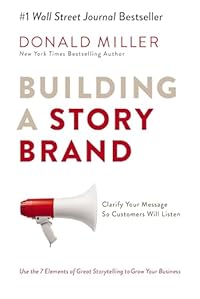
Building a StoryBrand
by Donald Miller
Clarify your message so customers will listen. The proven 7-part framework used by thousands of brands.

Contagious: Why Things Catch On
by Jonah Berger
Wharton professor reveals the science behind why ideas, products, and behaviors spread on social media.

DotCom Secrets
by Russell Brunson
The underground playbook for growing your company online with sales funnels that convert.
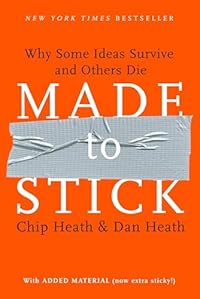
Made to Stick
by Chip Heath
Why some ideas survive and others die. Master the six principles of stickiness for your content.
As an Amazon Associate, we earn from qualifying purchases.
Also available for other platforms